 Google Flow Prompt Library
Google Flow Prompt Library
Google Flow Prompt Library
Google Flow automatically adds a small ✦ watermark in the corner of generated videos. The good news is that there's an official toggle in the account settings to disable this visible watermark — no additional tools needed. Here's how:
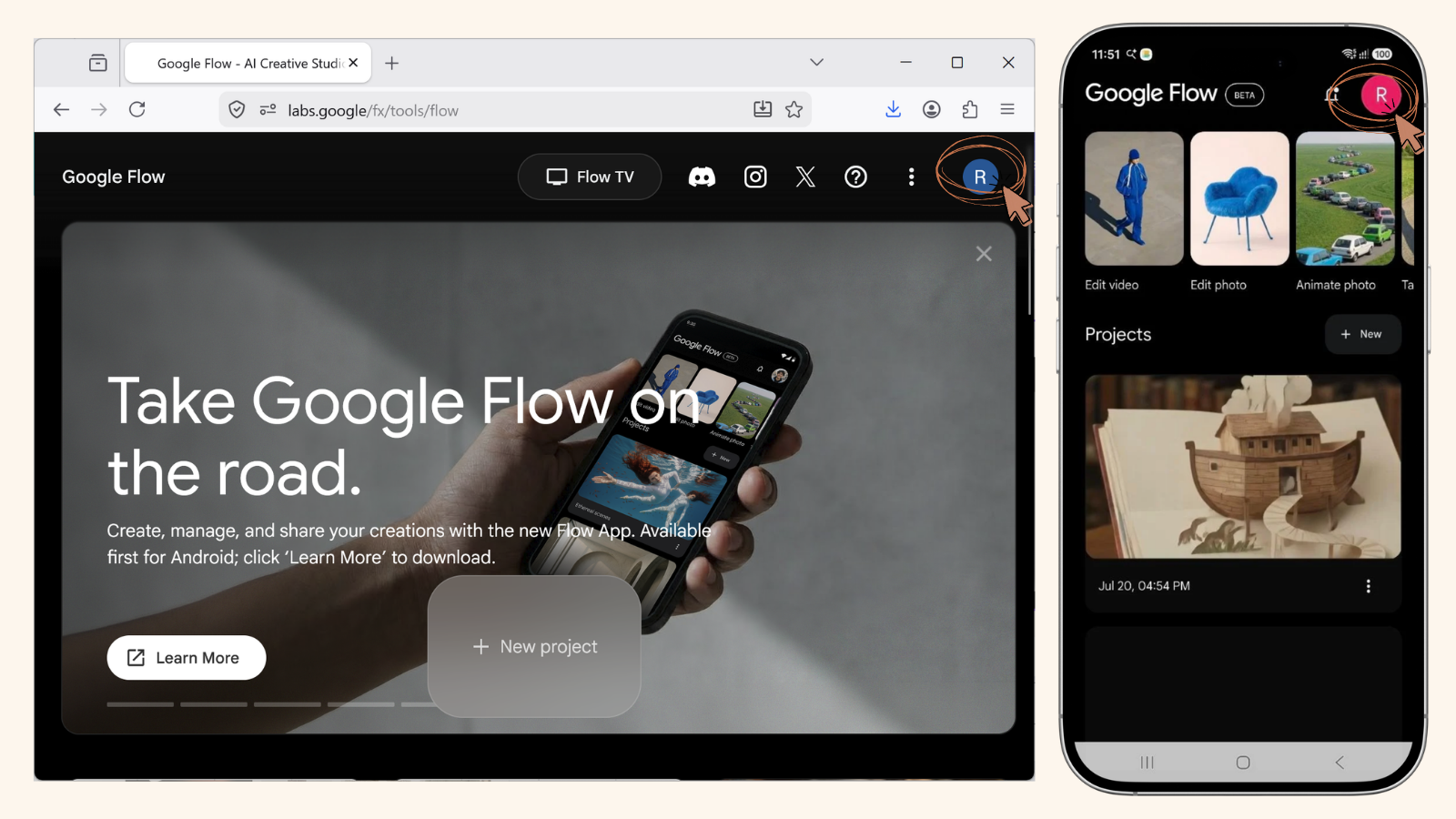
Log in to Google Flow using your Google account. Make sure you are logged in with the same account used for generating videos/images. On the dashboard page, click the avatar/profile picture icon in the top right corner of the screen. A user account menu will appear, containing information about credits, an Upgrade button, Create avatar, Manage membership, and Sign out options.
Scroll to the bottom of the account menu panel, just above the Privacy · Terms of Service · Licenses link. There you'll find the "Visible watermarking" row with two toggle options: Off and On. Click the Off button to activate it (as shown in the example image above). This change is usually saved automatically, so you can close the menu afterward.
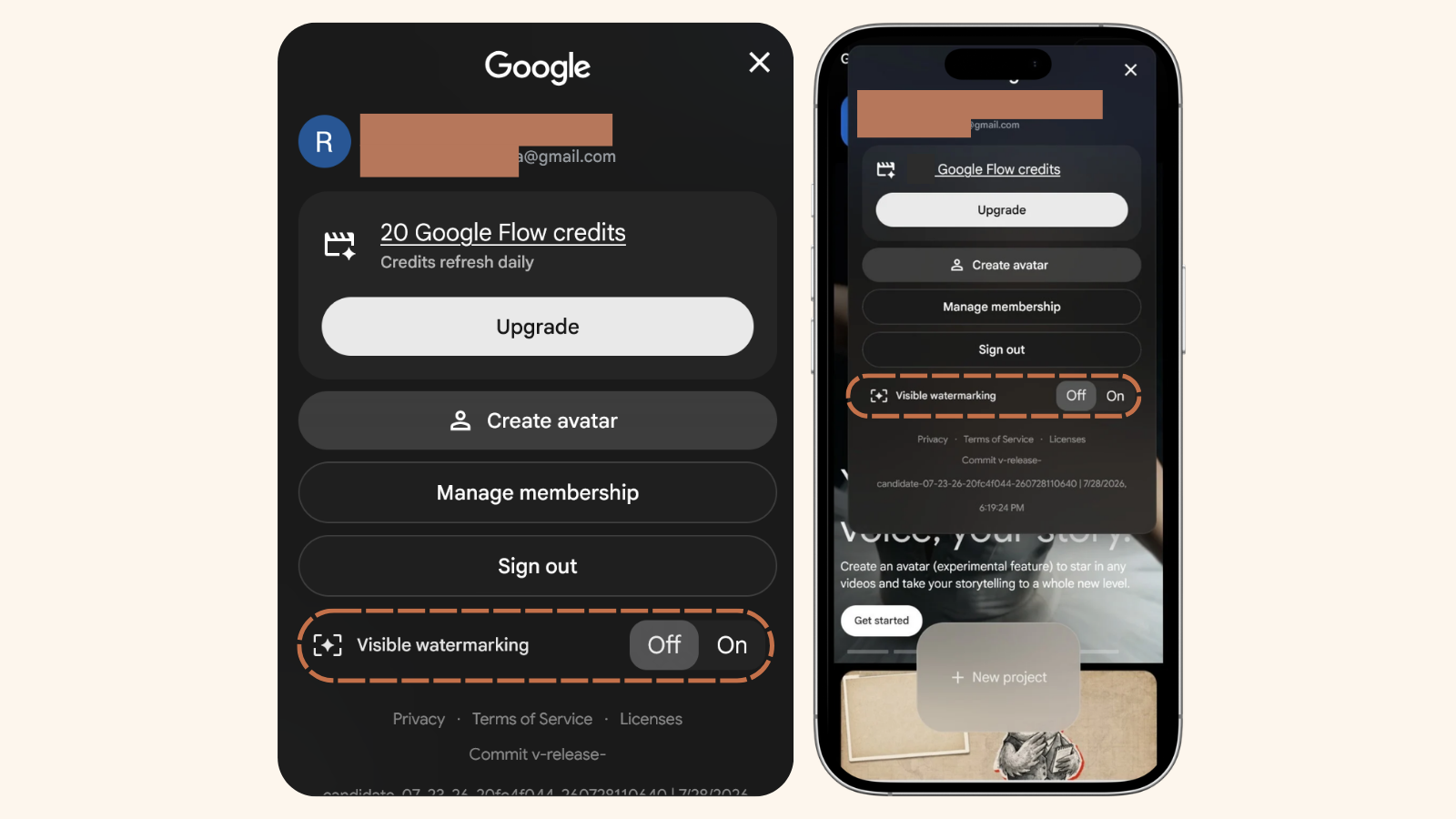
Create a new project or regenerate your video/image as usual. The next render result should be free of the small watermark in the corner. If you have existing videos that already have watermarks, you will need to regenerate them — this setting only applies to results created after the toggle is turned off.
Already watermark-free? Now just find the right prompt for your next piece of content.
Browse All Prompts →If this has been really helpful and you want to treat Emak to a shopping trip today, feel free — it's completely optional, just to make her day more motivating for creating new prompts. 💛
Treat Emak Today